Prompt Editor
PROMPT EDITOR
Define your agent's core identity, behavior, and dynamic capabilities in this single view.
STEP 1: CREATING PROMPTS
Start by creating new prompts using the "Generate Prompt" button.
AI Generation
Input the Agent Role, Goal, and Tone into the description field.Click "Generate Prompt" to receive an initial draft.The result automatically follows best practices for LLM instruction.
Manual Editing
Review the generated prompt in the editor below.The draft is fully editable and should be tailored to your campaign.Use the manual editor for all subsequent changes.
STEP 2: AUDIENCE VARIABLES
Integrate dynamic data points from your lead list to enable high-level personalization.
Insertion Method
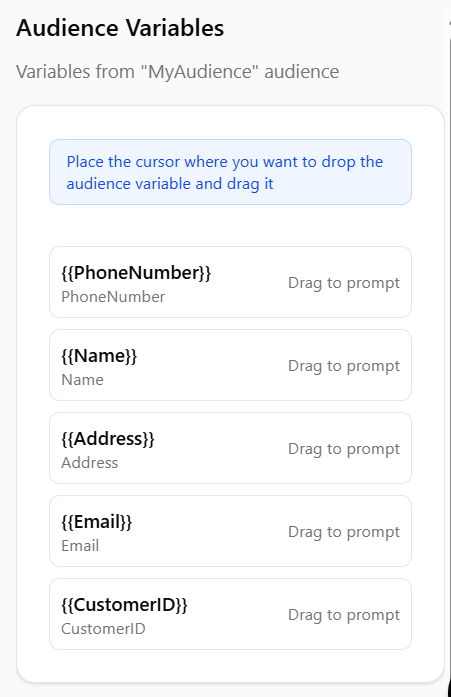
Drag variables (e.g., {{company_name}}) directly into the text.Variables are replaced by the lead's data at the start of each call.Example: "The customer is in the {{industry}} sector".
Data Scope
Standard contact fields (name, phone, email) are always available.Any custom column uploaded in your CSV can be used as a variable.Ensure the variable name matches the CSV header exactly.
STEP 3: FUNCTIONS & TOOLS
Equip your agent with system-level actions to manage call flow and outcomes effectively.
Action Integration
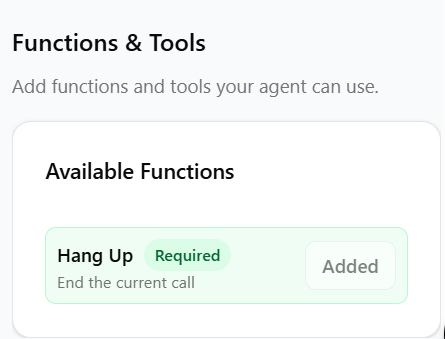
Drag tool tags (e.g., [Hang Up]) into the prompt.Clearly instruct the agent on the conditions for using each tool.The agent must be explicitly told to use a tool to end a call gracefully.
Tool Syntax
Tools are called using specific, rigid syntax (e.g., [Hang Up]).The agent decides when to use a tool based on the prompt's instructions.The [Hang Up] function is essential for defining conversation endpoints.