Analytics
ANALYTICS
Learn how to monitor call performance and insights. This guide covers tracking key metrics, analyzing agent performance, and reviewing detailed call logs to optimize your voice agent effectiveness.
Step 1: Viewing Key Metrics
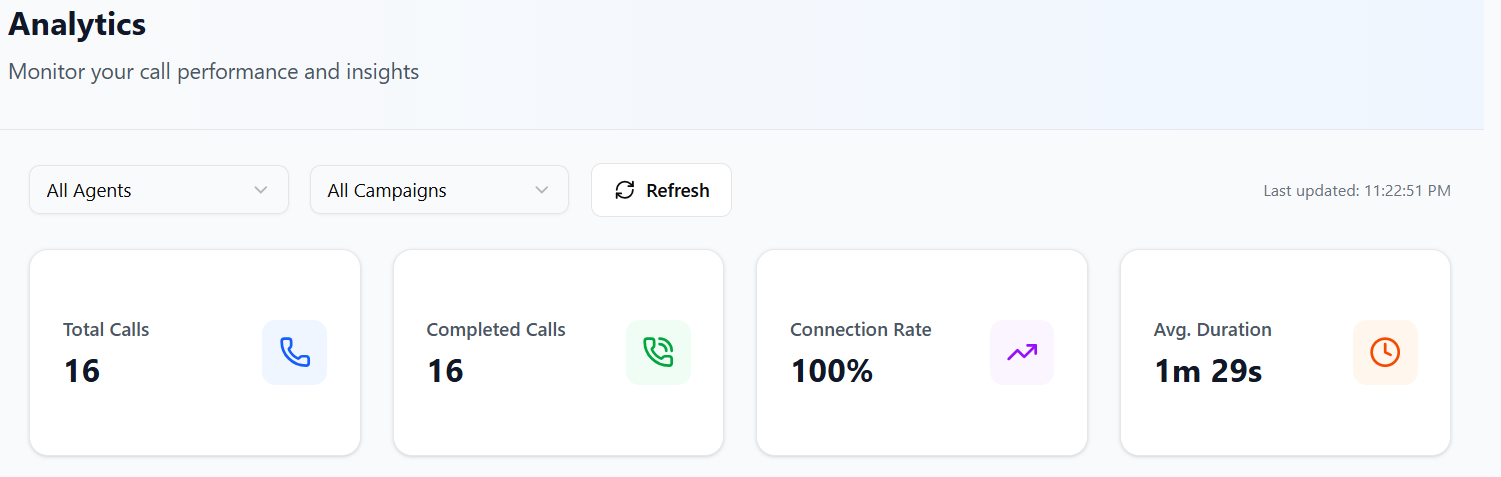
Start by reviewing the main analytics dashboard for overall performance indicators.
- Navigate to the Analytics section in your dashboard.
- View the key metrics cards: Total Calls, Completed Calls, Connection Rate, Average Duration.
- Monitor real-time updates and visual indicators.
- Use color-coded status badges to quickly assess performance.
Step 2: Analyzing Call Status Distribution
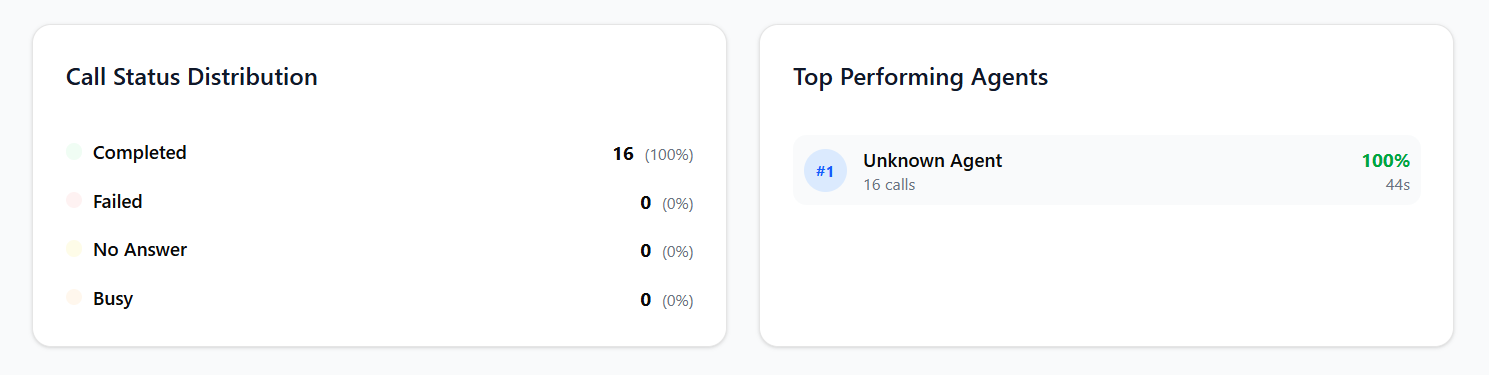
Understand call outcomes and identify patterns in your performance.
- Look at the Call Status Distribution section.
- Review percentages for Completed, Failed, No Answer, and Busy calls.
- Use color-coded indicators to spot trends.
- Compare status distributions over time.
Step 3: Searching Call Logs
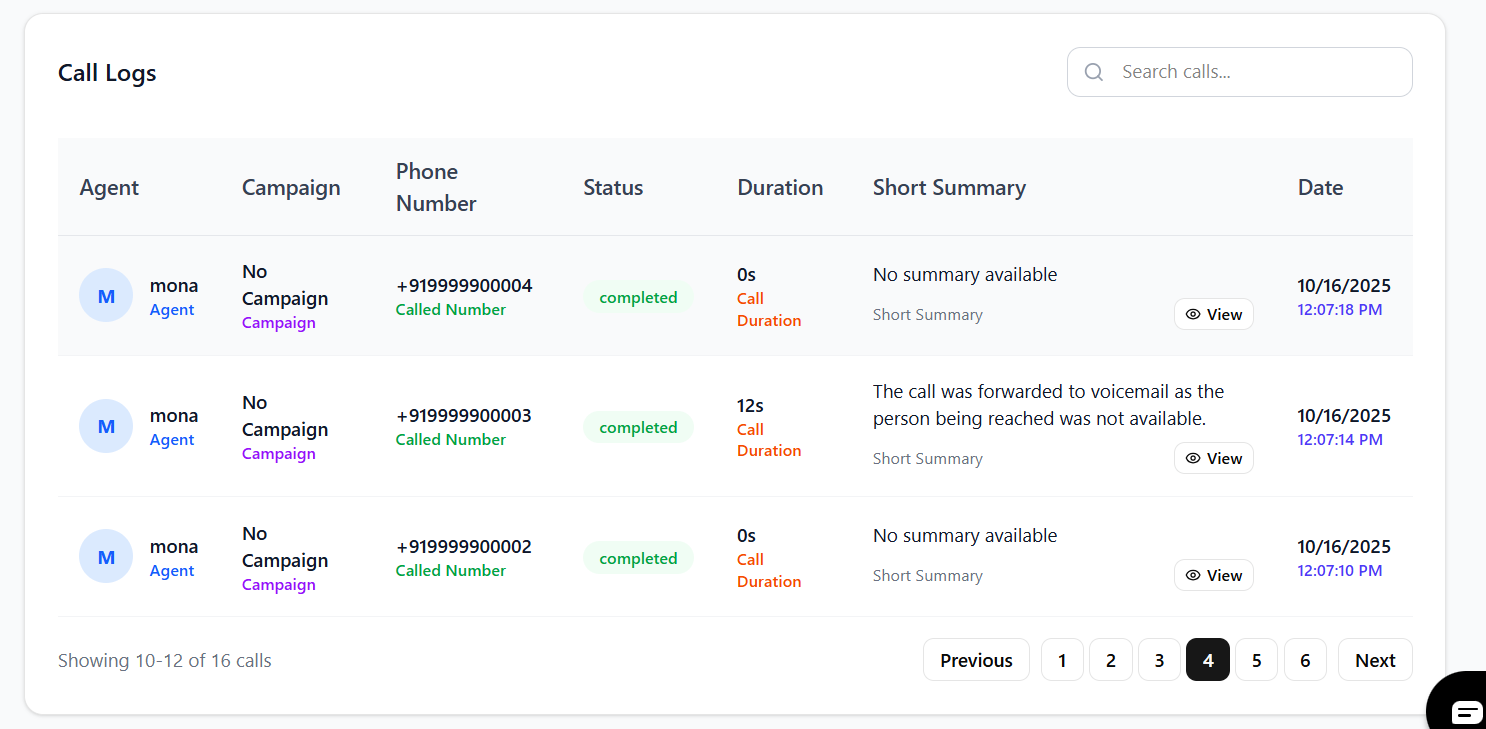
Access detailed call information with advanced search capabilities.
- Go to the Call Logs section.
- Use search filters: by agent name, campaign, phone number, or status.
- View call details: duration, status, summaries, and timestamps.
- Access short and full call summaries for insights.
Best Practices
- Monitor key metrics daily to track overall performance.
- Regularly review agent performance and provide feedback.
- Analyze campaign data to optimize targeting and messaging.
- Use call logs to identify common issues and improve scripts.
- Set up alerts for significant changes in connection rates or other KPIs.
Troubleshooting
Common issues and solutions:
- If data doesn't update, try manual refresh or check your connection.
- Ensure date ranges are set correctly when filtering.
- Verify agent and campaign assignments for accurate reporting.
- Contact support if call logs are missing or incomplete.